Make sure the carriage can move freely
Make sure the carriage moves freely across the width of the printer.
- Turn on the printer, if it is not already on.
- Open the ink cartridge access door.Figure : Opening the ink cartridge access door
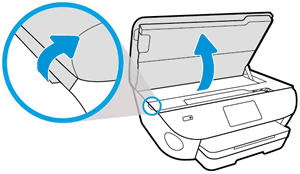
- Wait until the carriage is idle and silent before you continue.
- With the printer turned on, disconnect the power cord from the rear of the printer.
- Unplug the power cord from the power source or electrical outlet.
WARNING:
You must unplug the power cord to move the carriage by hand and reset the paper feed mechanism without the risk of electrical shock. - Use a flashlight to check for any paper or objects that might be restricting the carriage, and then remove any paper or objects that you find.
CAUTION:
If the paper tears when you remove it from the rollers, check the rollers and wheels for torn pieces of paper that might remain inside the printer. If pieces of paper remain in the printer, more paper jams can occur.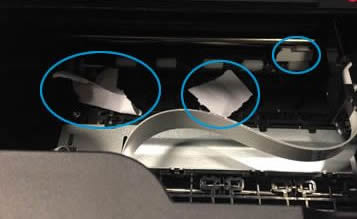
- Reach inside the printer through the ink cartridge access door, and then manually move the carriage.
- If the carriage is stuck on the right side of the printer, move the carriage to the left side of the printer.
- If the carriage is stuck on the left side of the printer, move the carriage to the right side of the printer.
- If the carriage is stuck in the middle of the printer, move the carriage to the right side of the printer.
- Remove any loose paper or obstructions found.
- Make sure the carriage can move freely across the width of the printer. Firmly push the carriage to the left side of the printer, and then push it to the right side.
- Close the ink cartridge access door.
- Reconnect the power cord to the rear of the printer.
- Plug the power cord back into the power source or electrical outlet.
- Turn on the printer.
